
Changing Your Registered Mobile Number
This guide will help users update their registered mobile number, ensuring consistent and efficient communication with your Clinicians and SigmaMD.
Steps to Change Your Registered Mobile Number
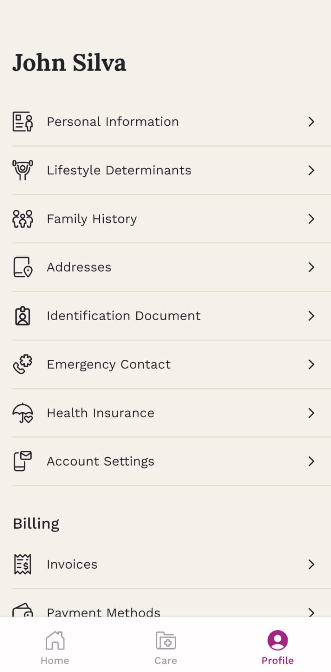
- Go to Account Settings: Tap the Profile tab in the bottom-right navigation. From the Profile screen, select Account Settings.
- Start the mobile number update: In Account Settings, find the Mobile number section. Tap Change next to your current number.
-
On the app:
-
On the web (Patient Portal):


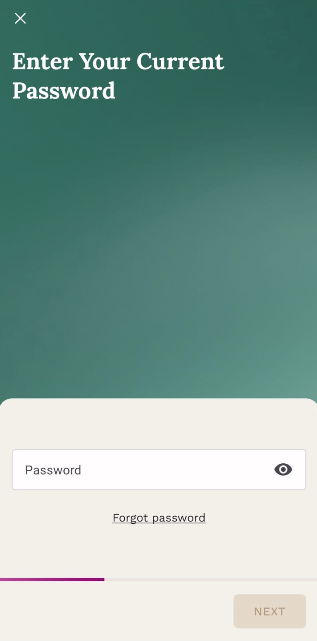
- Verify your identity
For security, you’ll be asked to enter your account password. This helps ensure only authorized users can update account details.
-
On the app:
-
On the web (Patient Portal):


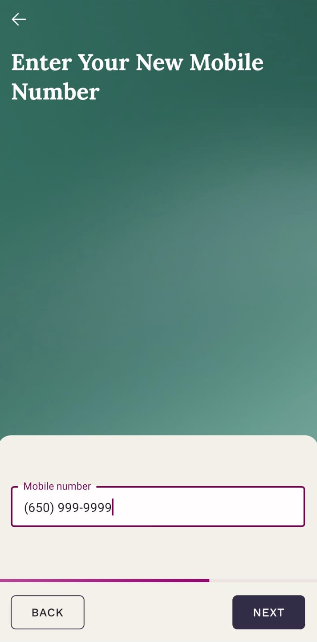
- Enter your new mobile number
Type in the new mobile number you want to associate with your account.
-
On the app:
-
On the web (Patient Portal):


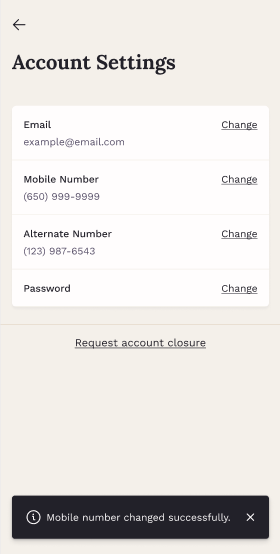
- Save the changes
Tap Next to save. A confirmation message will appear at the bottom of the app once the update is complete.
-
On the app:
-
On the web (Patient Portal):


Important Notes
- Use a mobile number you check regularly, as important notifications may be sent there.
- Double-check the number before saving to avoid communication issues.
-
Keeping your contact information updated helps ensure a smooth and reliable experience.
Changing the registered mobile number in the SigmaMD mobile app is a seamless process designed to empower users in managing their personal information effectively.