
Completing Your Forms
Your care team may ask you to complete forms before or after a visit. These forms help them understand your health history, preferences, and needs, so your appointment runs more smoothly.
The process is simple and designed to work on any device.
How you’ll receive your forms
Your clinic may send forms in a few different ways. No matter how you receive them, completing a form is quick and works on any device.
You may receive an email with a secure link to your form. Just tap the link to open it in your browser, no downloads needed.
Through chat
If your care team shares a form in chat, you’ll see it as a message in the conversation. You’ll also receive an email with the same link.
Tap the form from either place to open it in your browser and complete it.
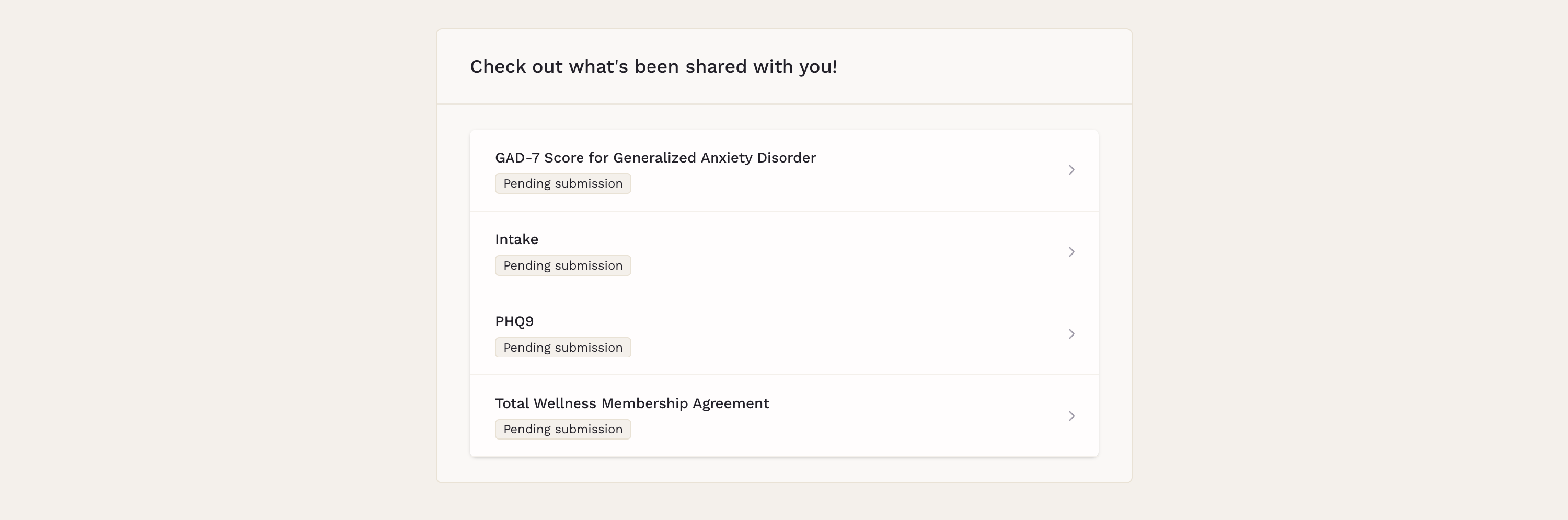
The layout automatically adjusts to your screen size for comfortable reading and navigation.
Filling Out the Form
You’ll answer questions by typing, selecting options, uploading files, or signing when needed. Some questions may appear only after certain answers, this helps keep the form shorter and more relevant to you.

You can move back and forth between sections before submitting, and the form will let you know if anything is missing.
For safety and privacy reasons, your information is not pre-filled in the form.
Patient Portal
-
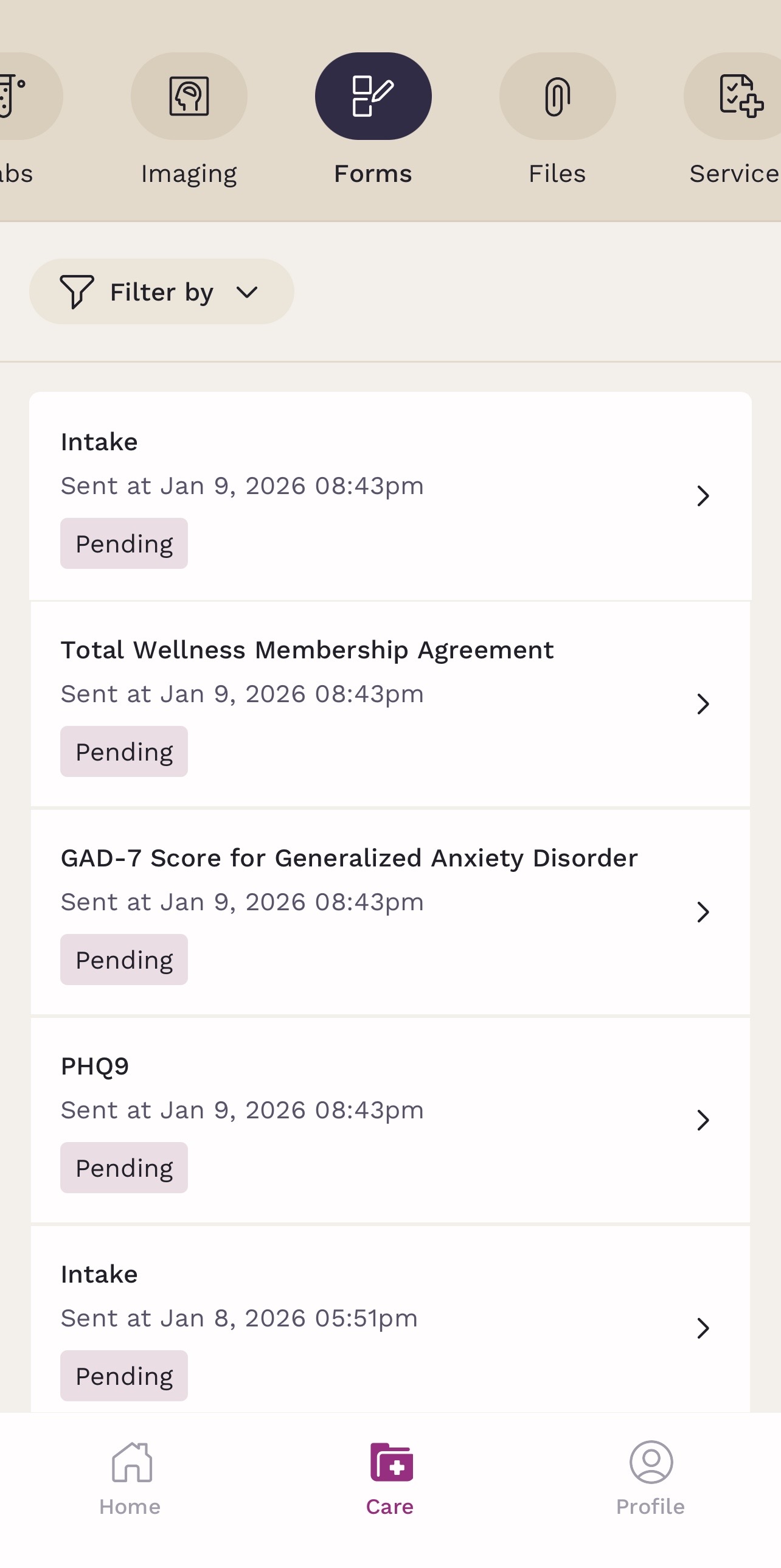
On the app: You can find all your forms under the Forms tab, where you’ll see both completed and pending forms. Pending forms also appear on the Home screen for quick access. Any forms shared with you are automatically added here, so everything stays organized in one place.
-
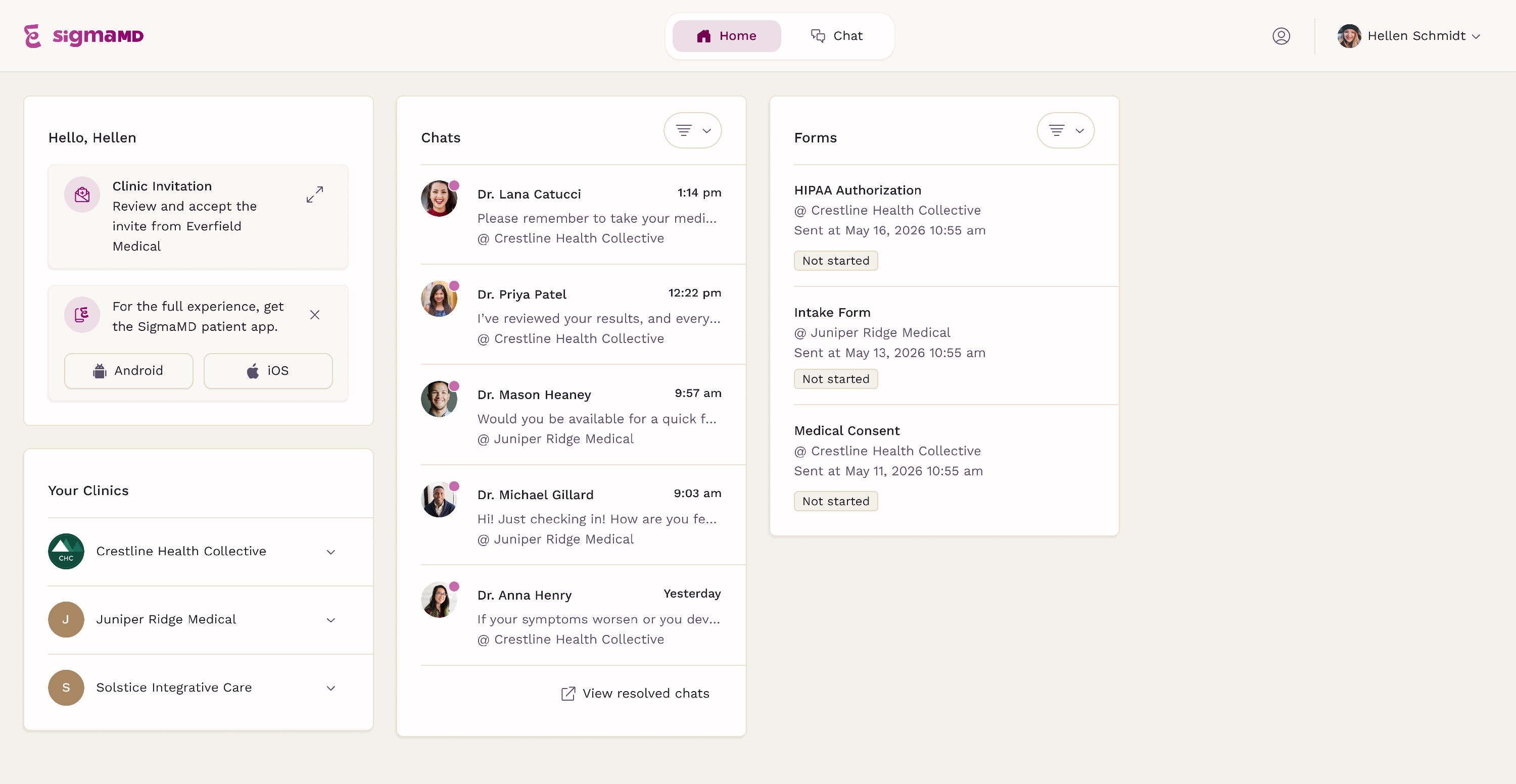
On the web (Patient Portal): Any forms shared with you are automatically added to the Forms section on the Home screen. If a form is shared through chat, it will also appear in the right-side panel of the conversation, making it easy to access while messaging your care team.
Saving and Submitting the Form
If you are signed in to the Patient Portal or mobile app, your form progress is automatically saved when you click the Continue button to move to the next section. Information completed in previous sections will remain saved if you leave and return later.
If you open the form as a guest without signing in, your progress will not be saved. Closing the tab, refreshing the page, or leaving the form before submitting will cause all entered information to be lost, and you will need to start the form again from the beginning.
Once all required fields are completed, you can submit the form. You’ll see a confirmation screen letting you know it was sent successfully.

After submission:
- The form is securely sent to your care team
- The form becomes read-only
- You won’t be asked to fill it out again unless a new request is sent
Helpful Things to Know
- You can complete forms on your phone. The experience is fully mobile-friendly.
- Submitted forms can’t be edited. If you need to make a change, contact your care team.